
Open in Coder
Open in Coder
You can embed an "Open in Coder" button into your git repos or internal wikis to let developers quickly launch a new workspace.
Your browser does not support the video tag.
How it works
To support any infrastructure and software stack, Coder provides a generic approach for "Open in Coder" flows.
1. Set up git authentication
See External Authentication to set up Git authentication in your Coder deployment.
2. Modify your template to auto-clone repos
The id in the template's coder_external_auth data source must match the
CODER_EXTERNAL_AUTH_X_ID in the Coder deployment configuration.
If you want the template to clone a specific git repo:
# Require external authentication to use this template
data "coder_external_auth" "github" {
id = "primary-github"
}
resource "coder_agent" "dev" {
# ...
dir = "~/coder"
startup_script =< [!NOTE]
> The `dir` attribute can be set in multiple ways, for example:
>
> - `~/coder`
> - `/home/coder/coder`
> - `coder` (relative to the home directory)
If you want the template to support any repository via
[parameters](./extending-templates/parameters.md)
```tf
# Require external authentication to use this template
data "coder_external_auth" "github" {
id = "primary-github"
}
# Prompt the user for the git repo URL
data "coder_parameter" "git_repo" {
name = "git_repo"
display_name = "Git repository"
default = "https://github.com/coder/coder"
}
locals {
folder_name = try(element(split("/", data.coder_parameter.git_repo.value), length(split("/", data.coder_parameter.git_repo.value)) - 1), "")
}
resource "coder_agent" "dev" {
# ...
dir = "~/${local.folder_name}"
startup_script =<) and `YOUR_TEMPLATE` with the name of your template.
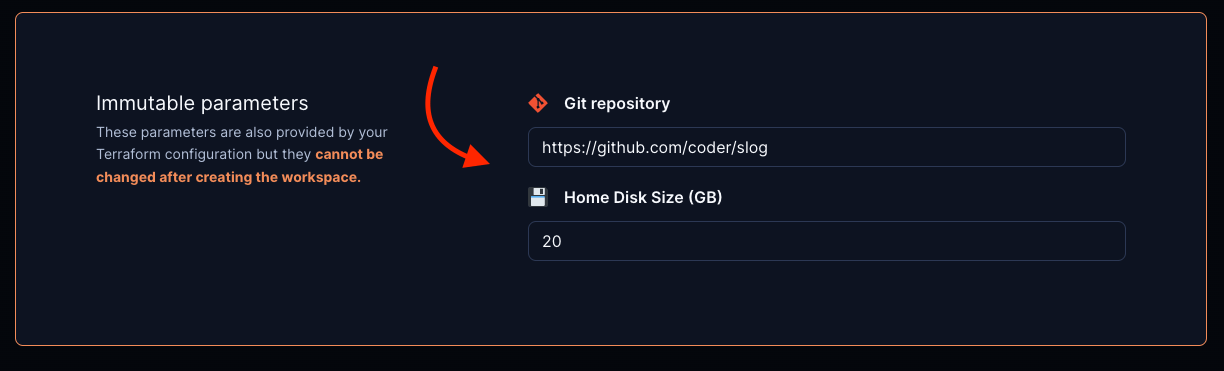
### 4. Optional: pre-fill parameter values in the "Create Workspace" page
This can be used to pre-fill the git repo URL, disk size, image, etc.
```md
[](https://YOUR_ACCESS_URL/templates/YOUR_TEMPLATE/workspace?param.git_repo=https://github.com/coder/slog¶m.home_disk_size%20%28GB%29=20)
5. Optional: disable specific parameter fields by including their names as
specified in your template in the disable_params search params list
[](https://YOUR_ACCESS_URL/templates/YOUR_TEMPLATE/workspace?disable_params=first_parameter,second_parameter)
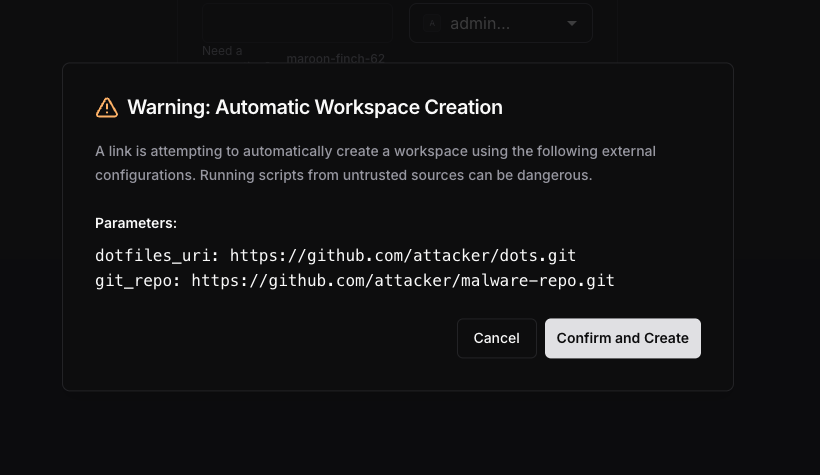
Security: consent dialog for automatic creation
When using mode=auto with prefilled param.* values, Coder displays a
security consent dialog before creating the workspace. This protects users
from malicious links that could provision workspaces with untrusted
configurations, such as dotfiles or startup scripts from unknown sources.
The dialog shows:
- A warning that a workspace is about to be created automatically from a link
- All prefilled
param.*values from the URL - Confirm and Create and Cancel buttons
The workspace is only created if the user explicitly clicks Confirm and Create. Clicking Cancel falls back to the standard creation form where all parameters can be reviewed manually.
Example: Kubernetes
For a full example of the Open in Coder flow in Kubernetes, check out this example template.