
Licensing
Licensing
Some features are only accessible with a Premium license, including AI Governance. See our pricing page for more details. To try paid features, you can request a trial or contact sales.
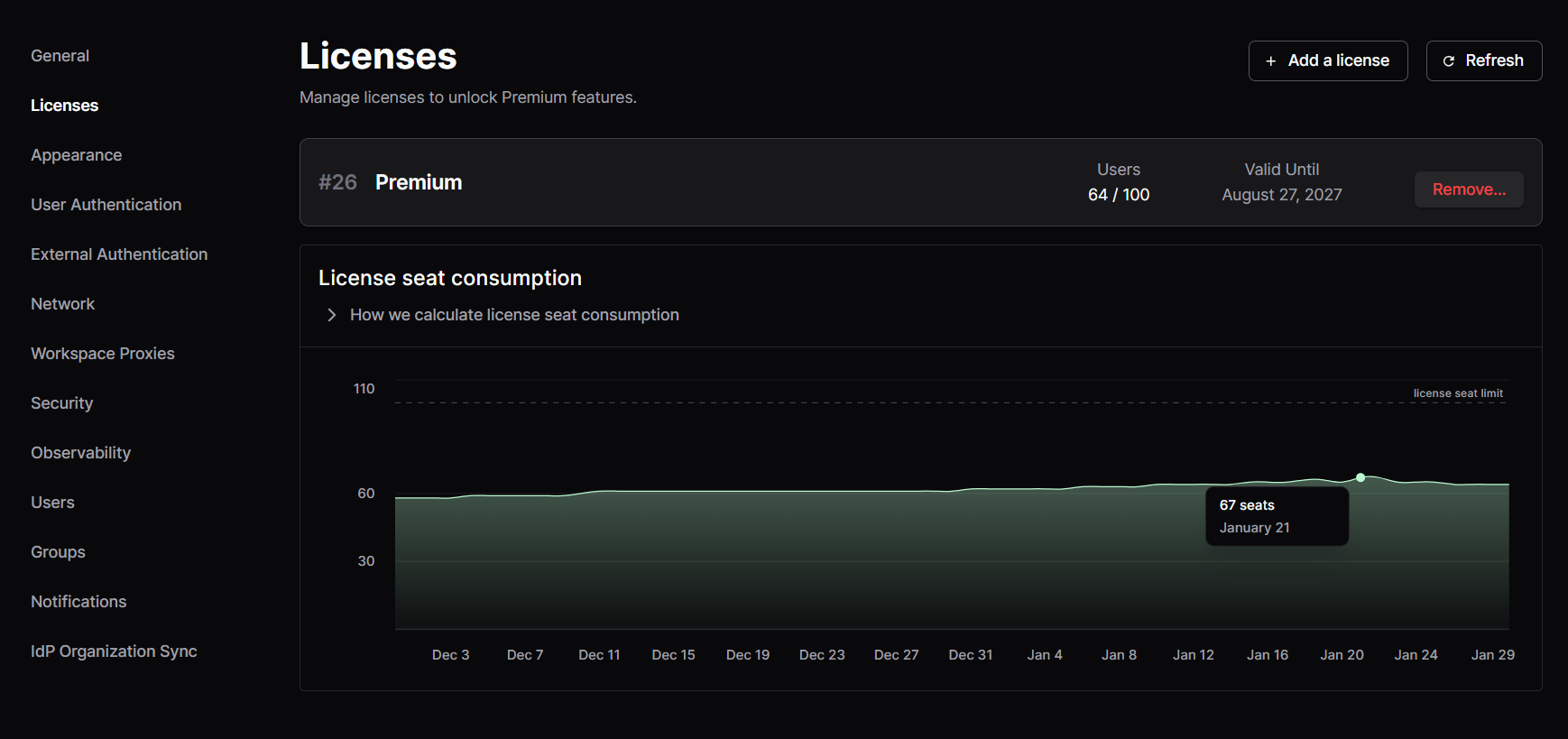
Offline license validation
Coder license keys are signed JWTs that are validated locally using cryptographic signatures. No outbound connection to Coder's servers is required for license validation. This means licenses work in air-gapped and offline deployments without any additional configuration.
Adding your license key
There are two ways to add a license to a Coder deployment:
Coder UI
-
With an
Owneraccount, go to Admin settings > Deployment. -
Select Licenses from the sidebar, then Add a license:
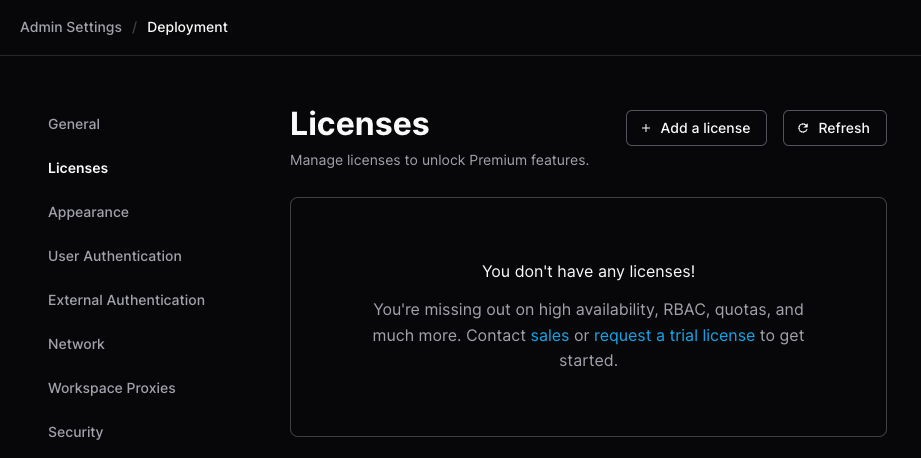
-
On the Add a license screen, drag your
.jwtlicense file into the Upload Your License section, or paste your license in the Paste Your License text box, then select Upload License: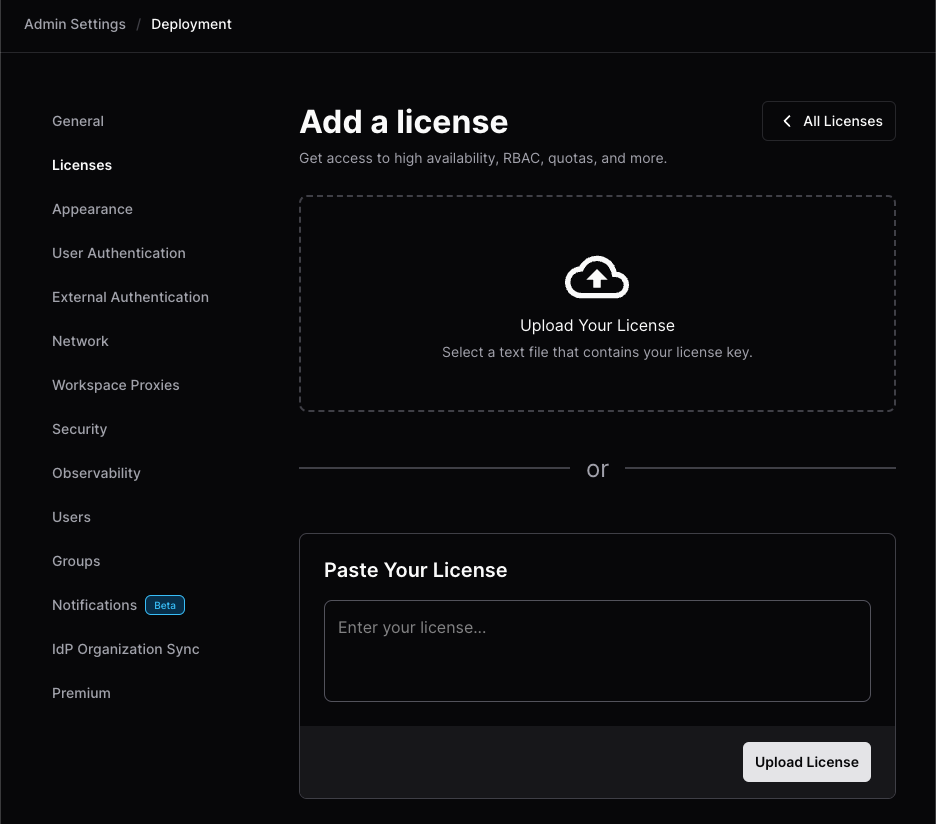
Coder CLI
-
Ensure you have the Coder CLI installed.
-
Save your license key to disk and make note of the path.
-
Open a terminal.
-
Log in to your Coder deployment:
coder login -
Run
coder licenses add:-
For a
.jwtlicense file:coder licenses add -f -
For a text string:
coder licenses add -l 1f5...765
-
FAQ
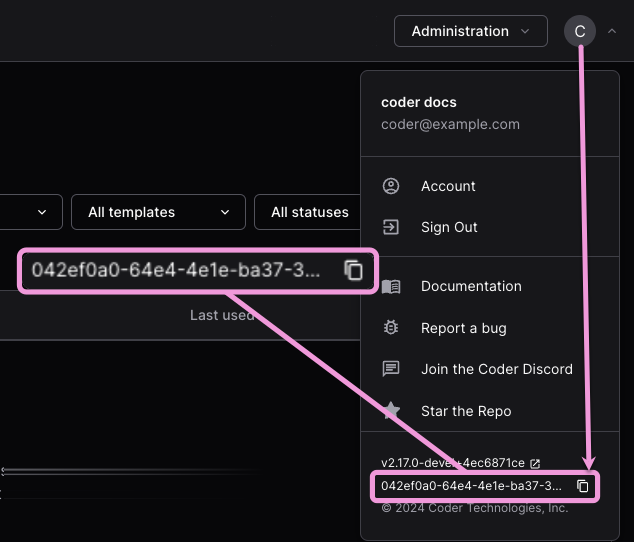
Find your deployment ID
You'll need your deployment ID to request a trial or license key.
From your Coder dashboard, select your user avatar, then select the Copy to clipboard icon at the bottom:
How we calculate license seat consumption
Licenses are consumed based on the status of user accounts. Only users who have been active in the last 90 days consume license seats.
Consult the user status documentation for more information about active, dormant, and suspended user statuses.